PAW Workbook Asset Analytics
PAW Data Import
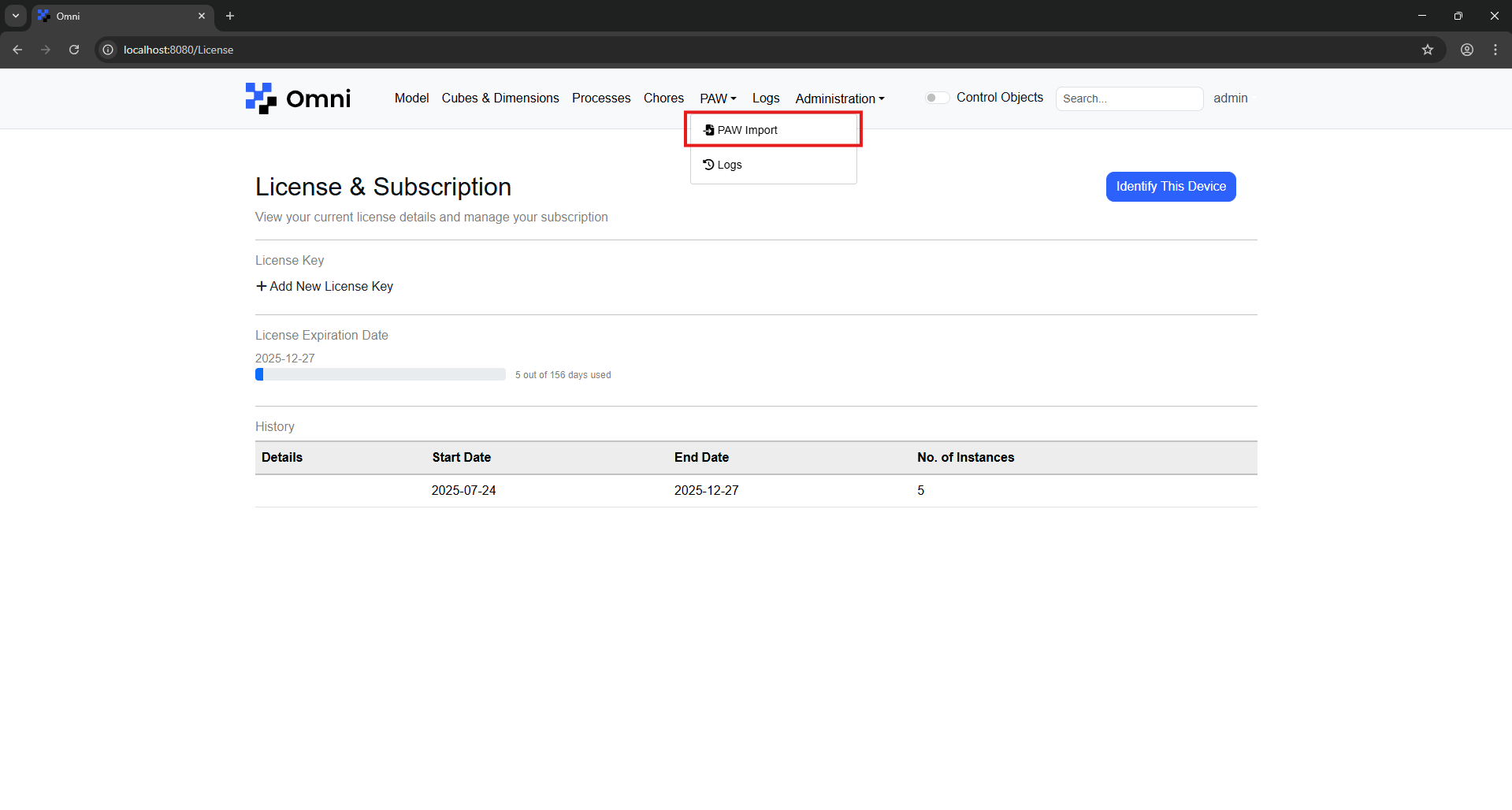
Under the 'PAW' dropdown menu, select 'PAW Import' to navigate to the page to import PAW data.
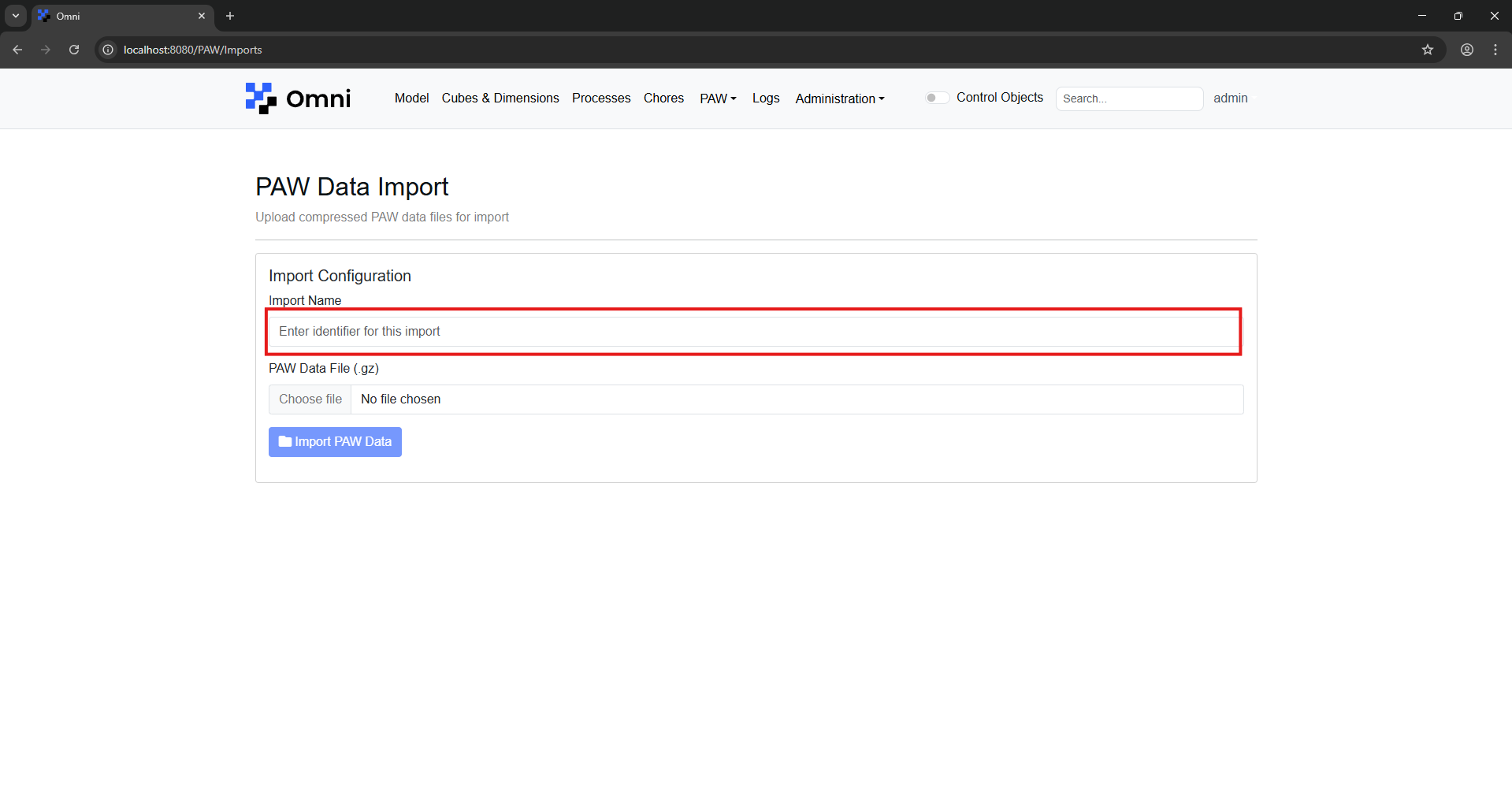
Enter a name for you to tag to the import for future reference. (This name has no impact on the PAW data you import.)
Use the file selection field to select the gzip file you wish to import.
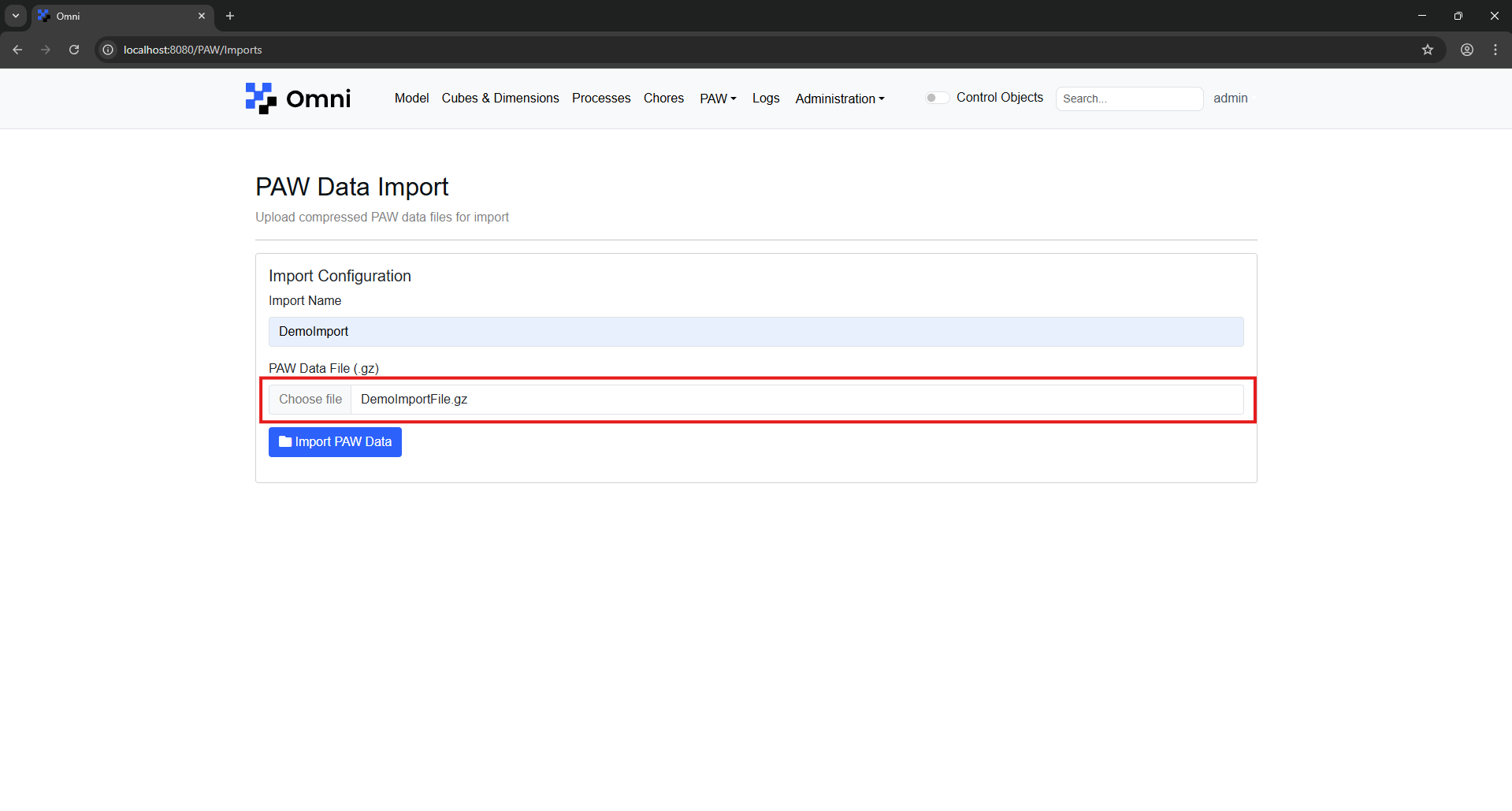
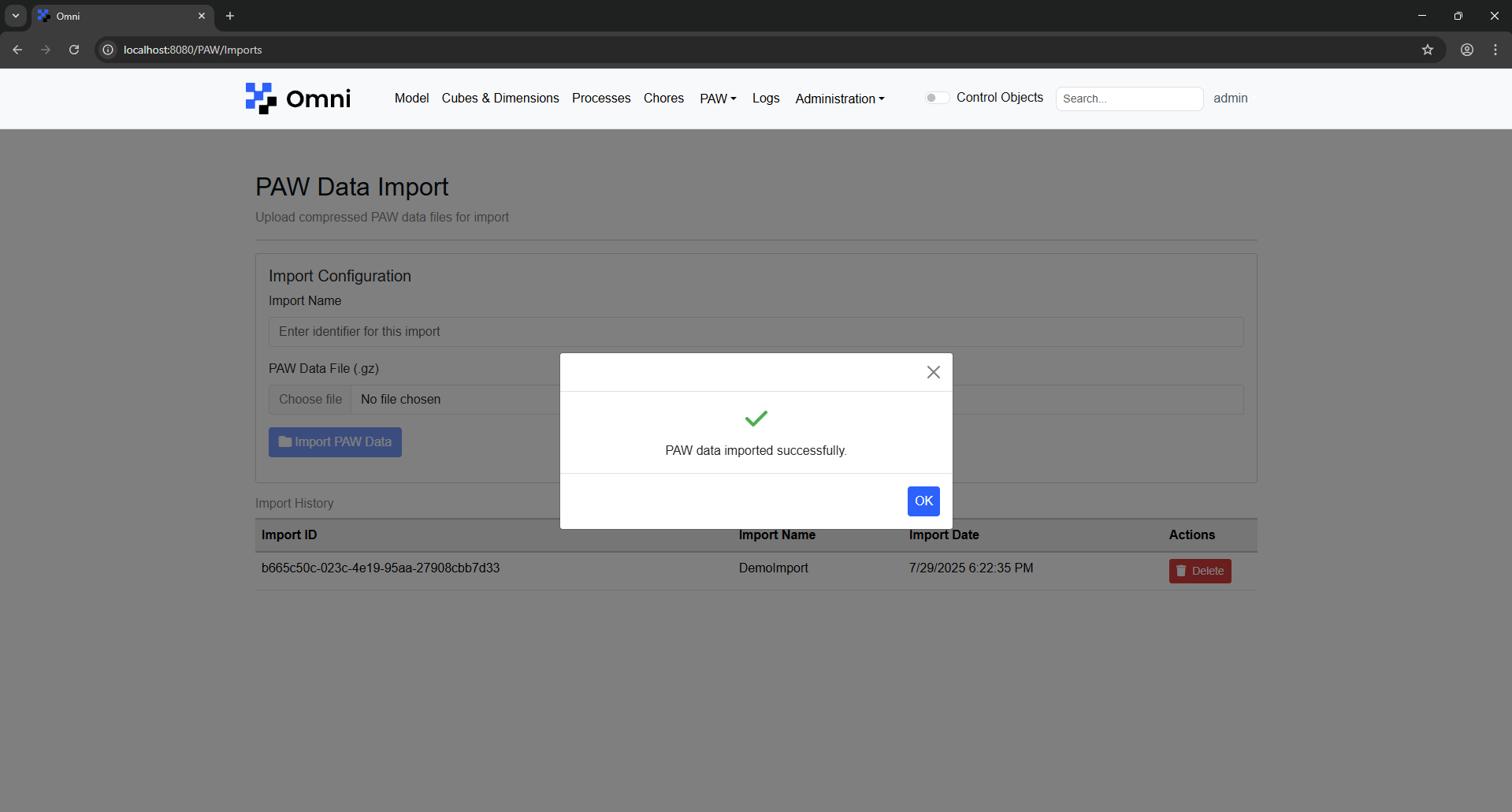
After clicking the import button in blue, you should be presented with the following success message.
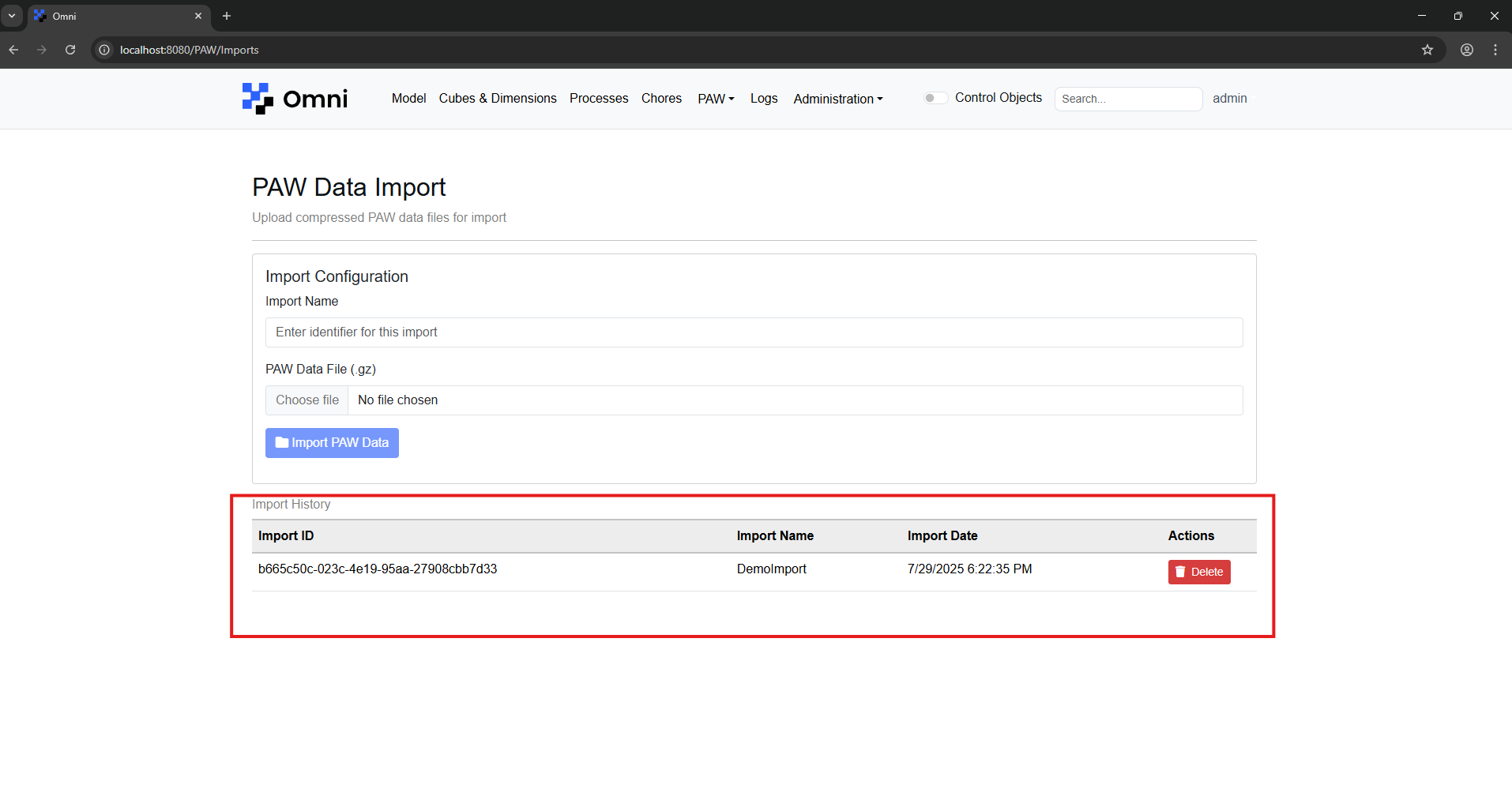
Your import will appear in a list at the bottom of the screen, and you can also remove any unwanted imports using the delete button.
PAW Asset Analytics
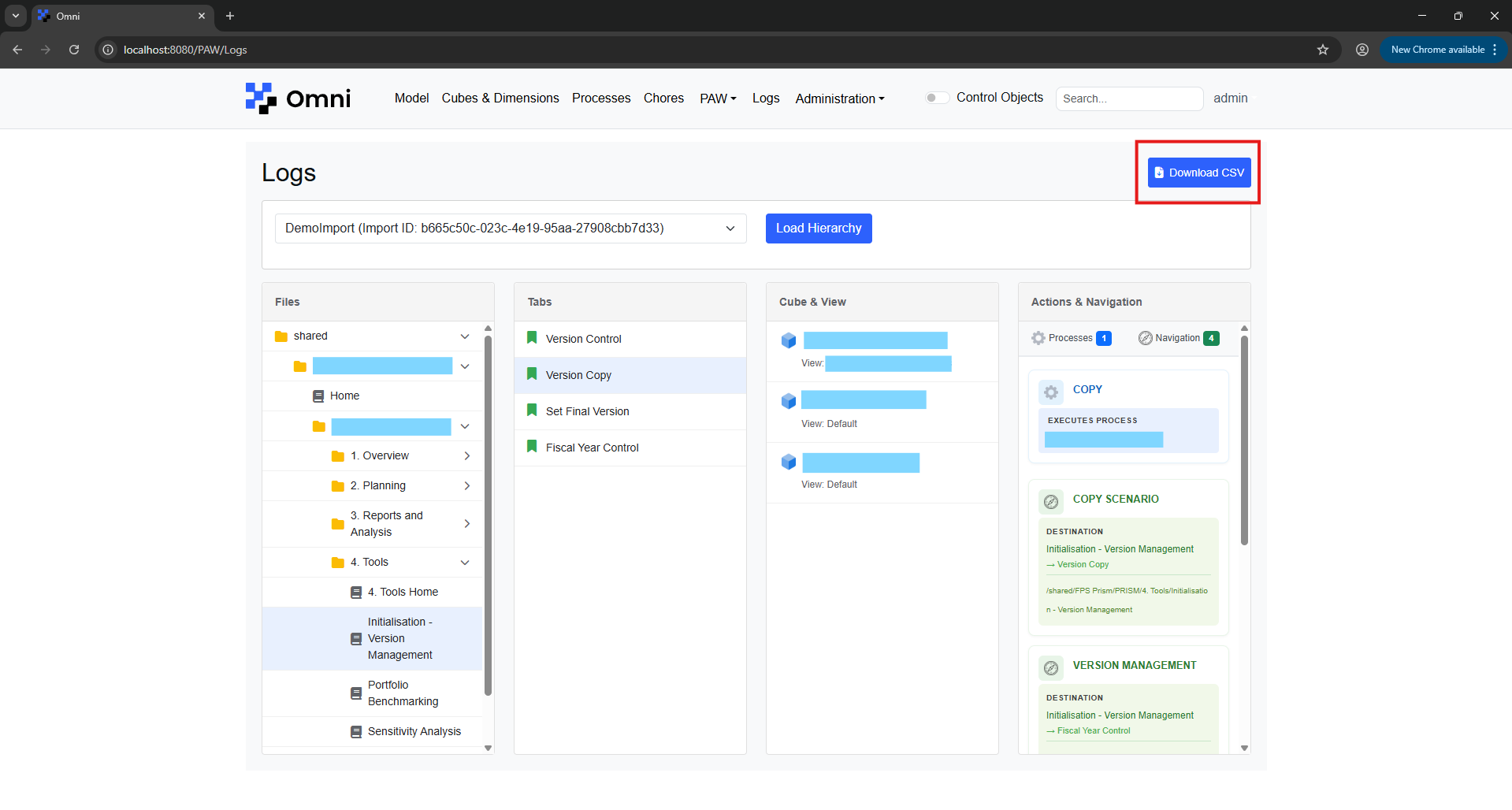
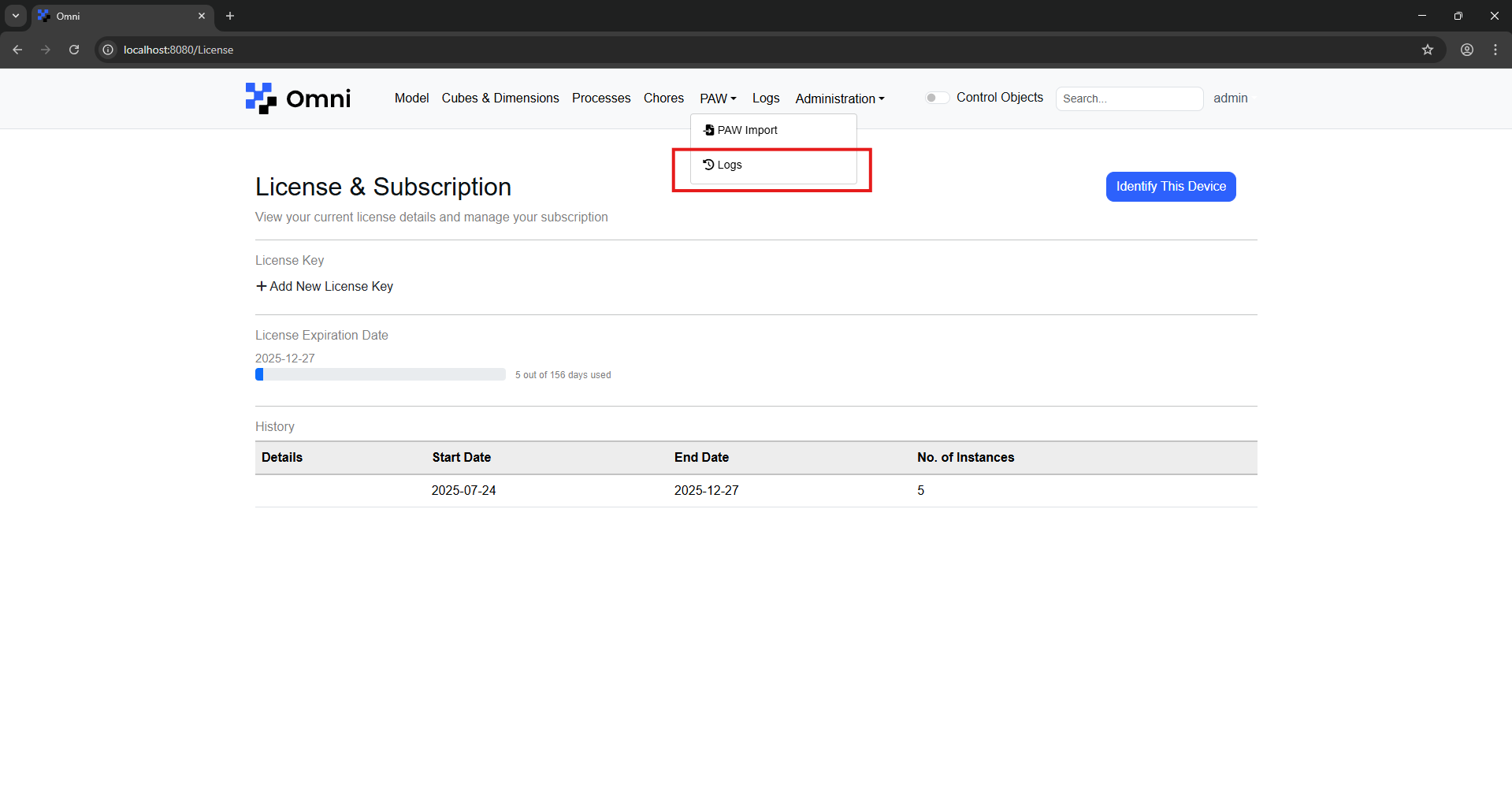
Under the 'PAW' dropdown menu, select 'Logs' to navigate to the page to view PAW Asset Analytics for your imported data.
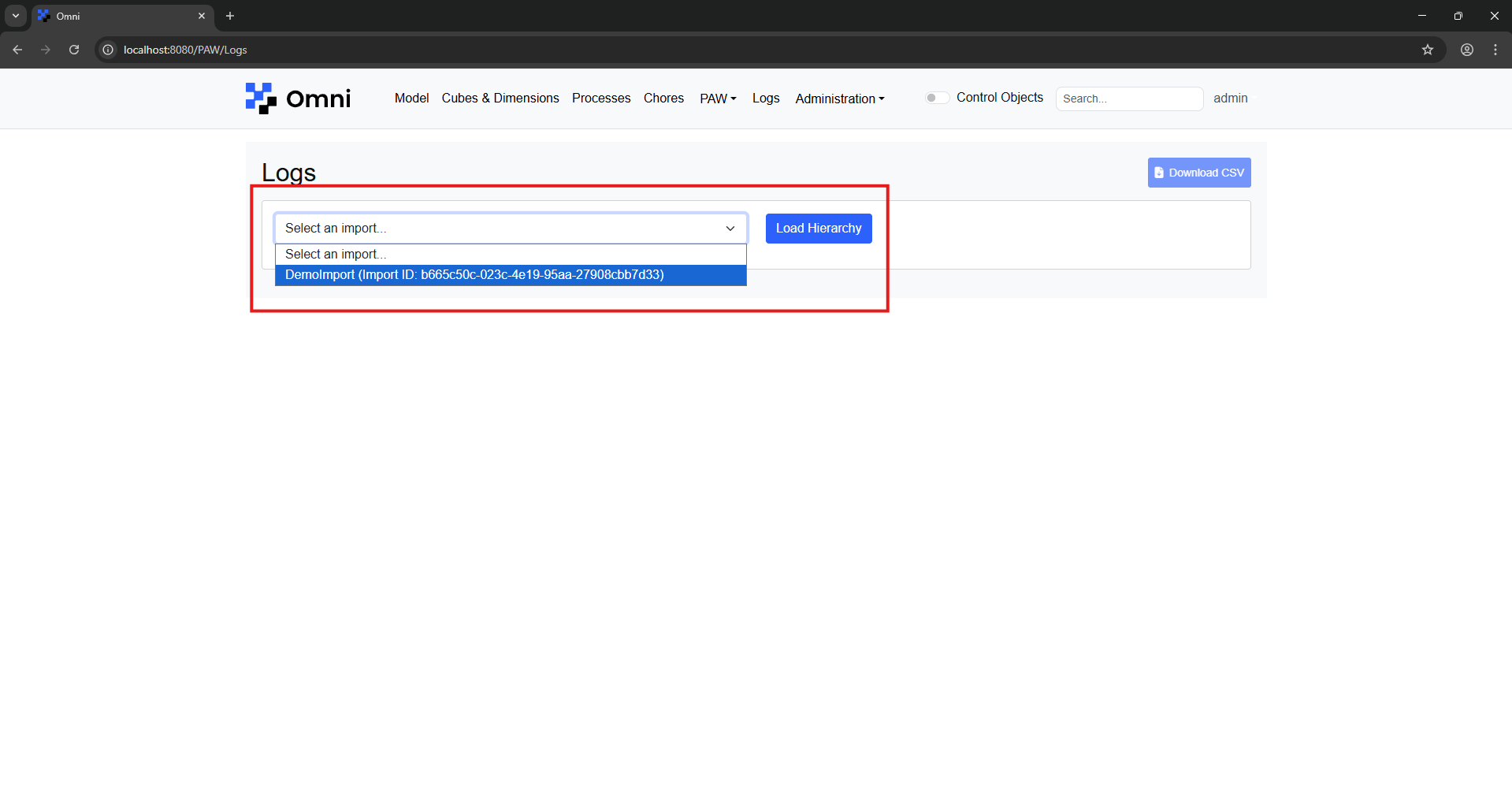
From the dropdown menu, select the import you want and click the 'Load Hierarchy' button.
You will then be able to view the hierarchy of folders and books within that workbook, with the option to collapse/expand folders.
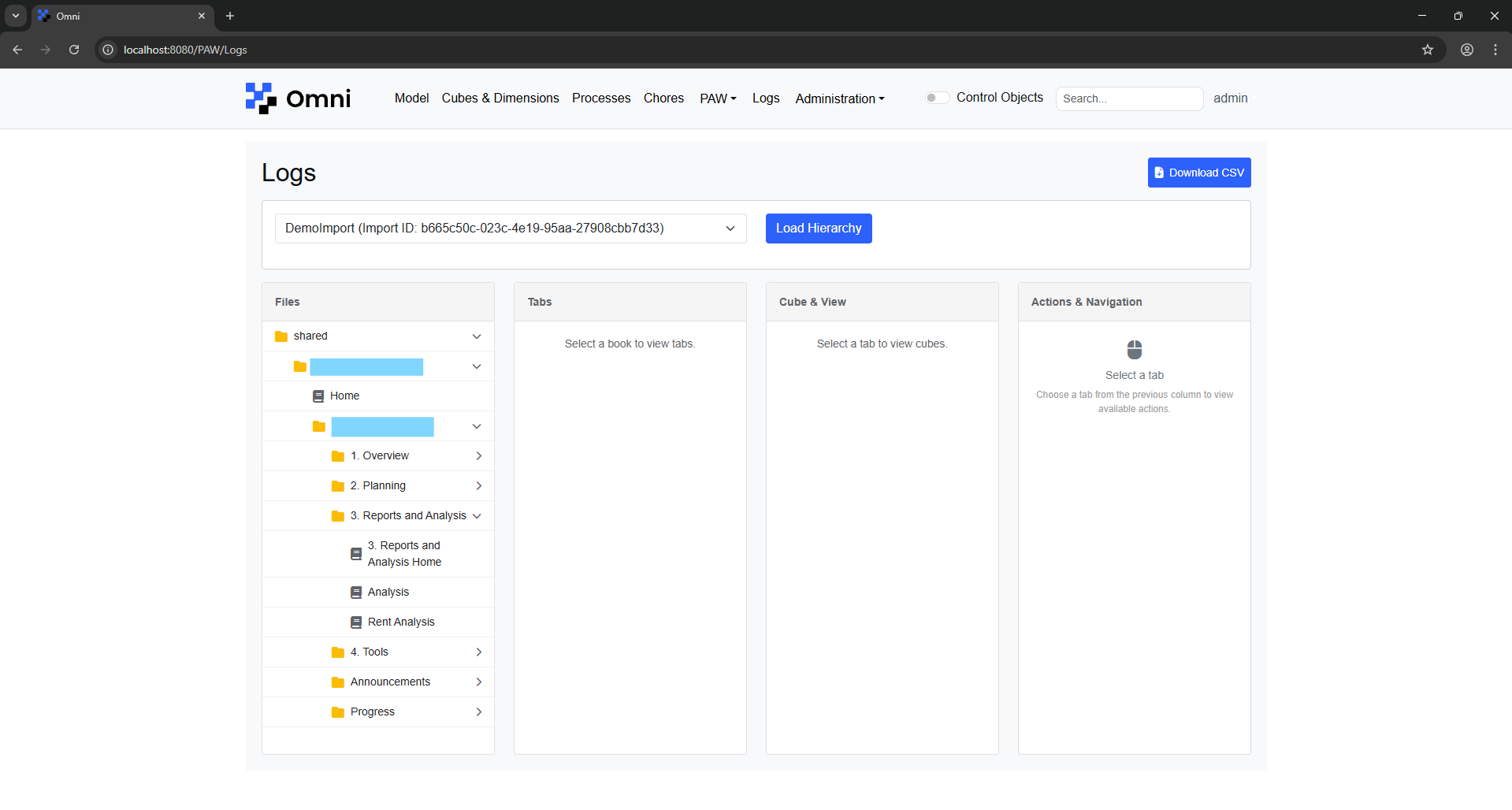
When you select one of the books, you will be able to view the different tabs within that book.
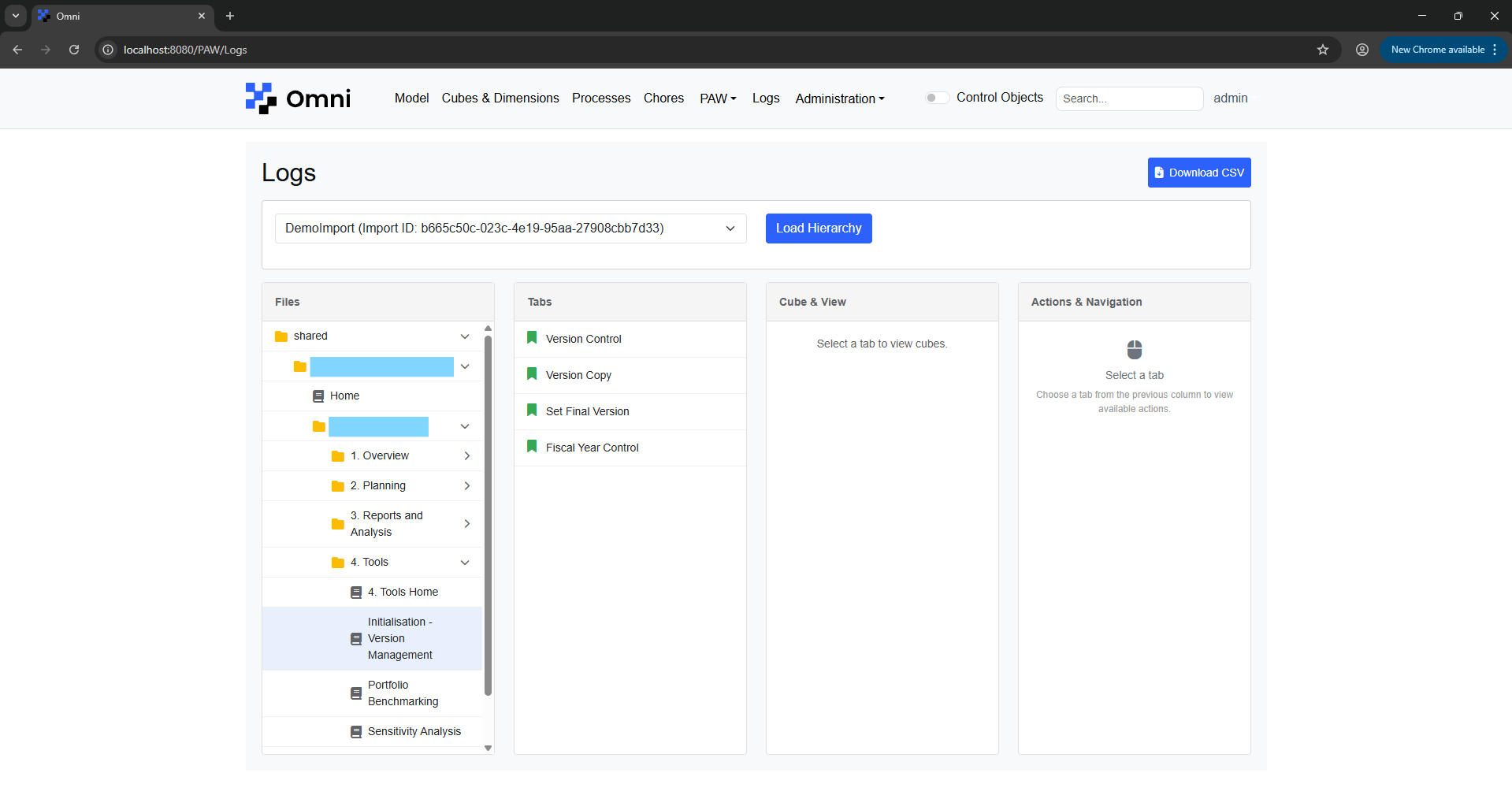
Similarly, when you select one of the tabs, you will be able to see the cube views used in that tab along with any process/navigation buttons.
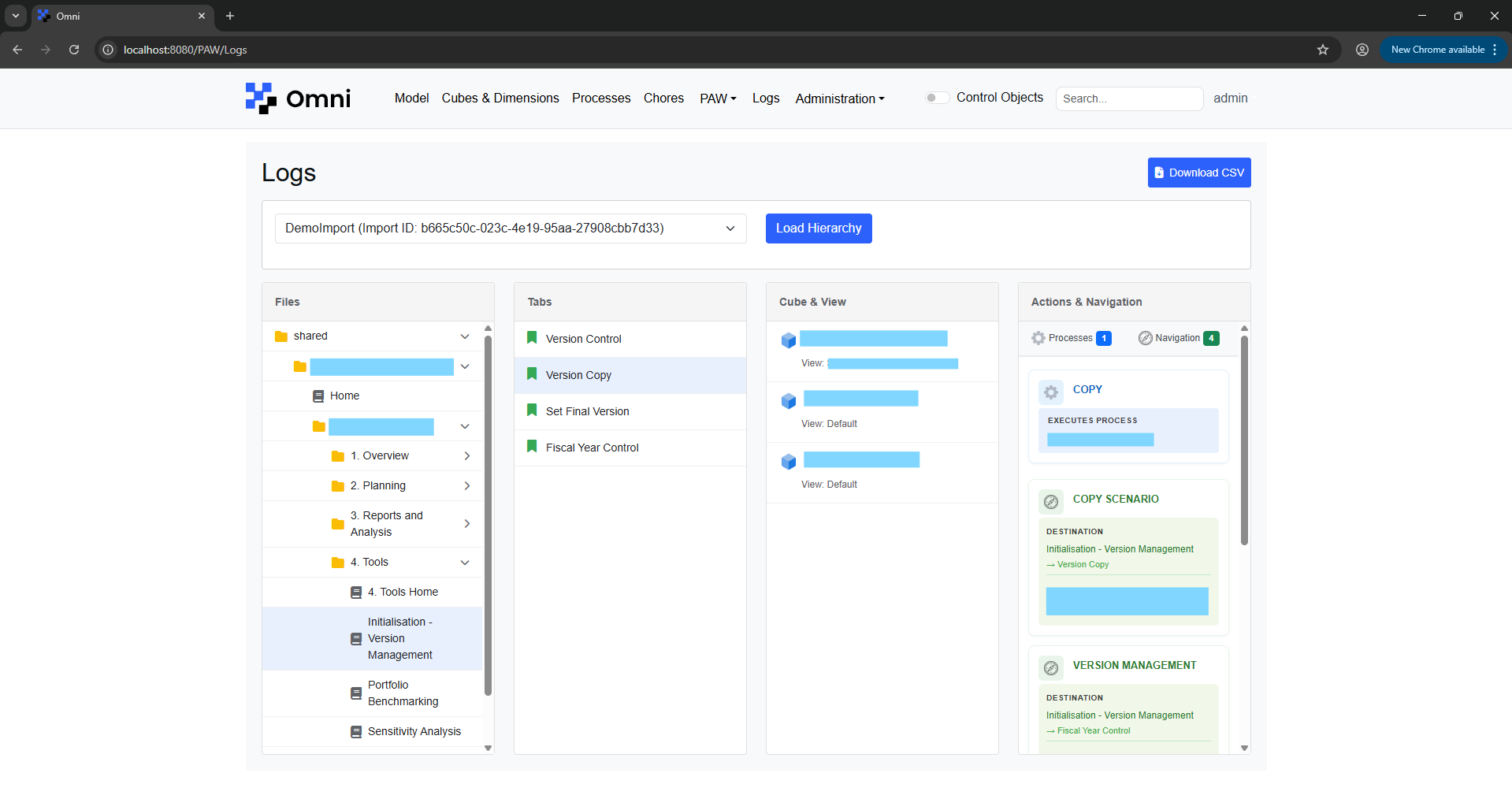
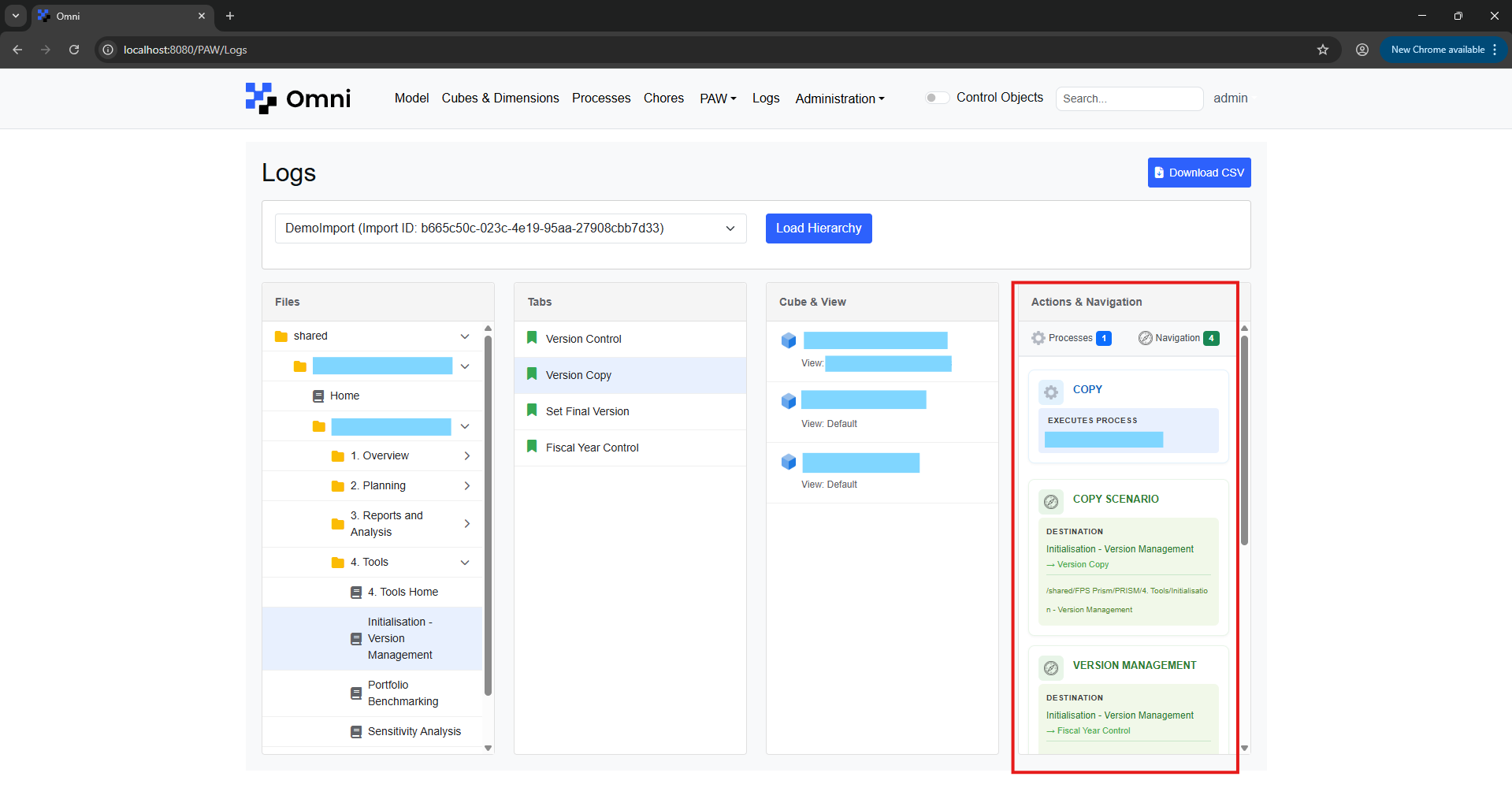
Process buttons and navigation buttons are also differentiated by colour for easy viewing.
You will also be able to export all of this data into a csv file by clicking the 'Download CSV' button.